Examining a Unit of Measure
To examine a unit of measure:
Open the System Explorer window.
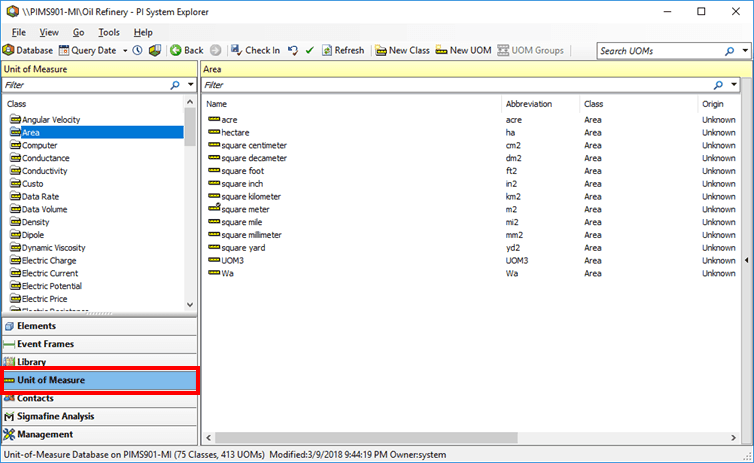
From the navigation pane, click on Unit of Measure to display the Unit of Measure panes.
The Unit of Measure panes display.
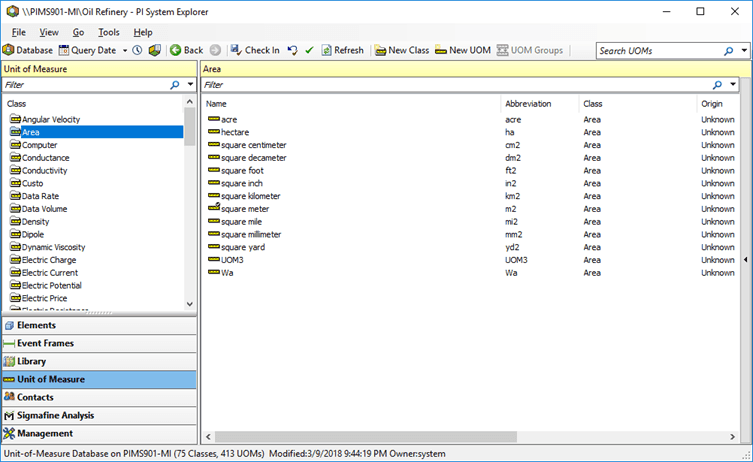
In the left pane, select the Class (i.e., Area) for the unit of measure you want to examine.
In the right pane, double-click on the Name of the unit of measure (i.e., square foot) you want to examine.
The Unit of Measure Properties window opens. displaying the properties for the selected class and unit of measure.
Figure 98L Unit of Measure Properties - Area Class
In the example we provided, the selected unit of measure Name (‘square foot’) has an Abbreviation of 'ft2'. The Canonical UOM is the one for the Area Class ‘square meter’ and the Reference UOM is not the canonical, but ‘square inch’ with a factor of 144 square inches per square foot.
If you examine the unit of measure for square inches you find a factor of 0.00064516 square meters per square inch, which means that the factor for square foot would have been 0.0929 if we would have selected "square meters" as the Reference UOM for square foot.
When finished examining the UOM, click Cancel to close the Unit of Measure Properties window.
 EXAMPLE